Generate Report
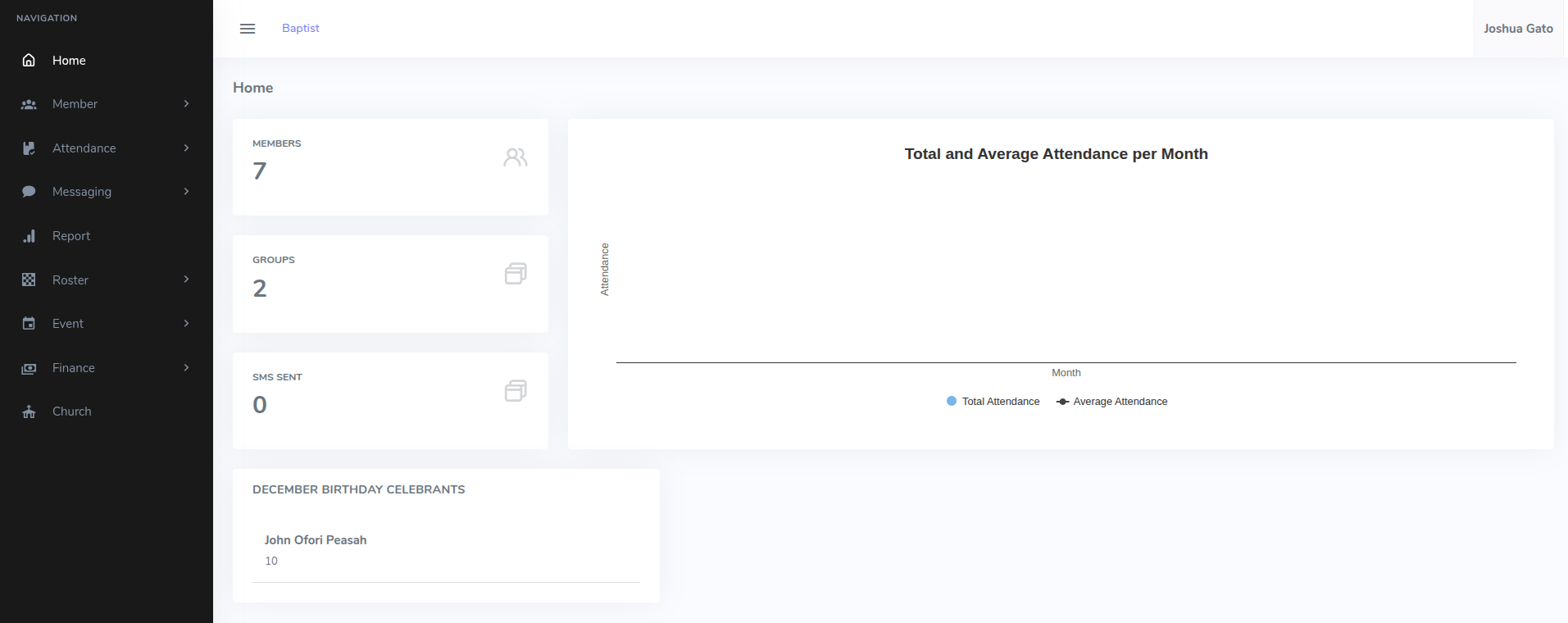
- On the dashboard homepage, click on the Report menu option on the left sidebar. (This opens a page with heading Generate Report with the report generating wizard to appear)
- On the Generate Report page:
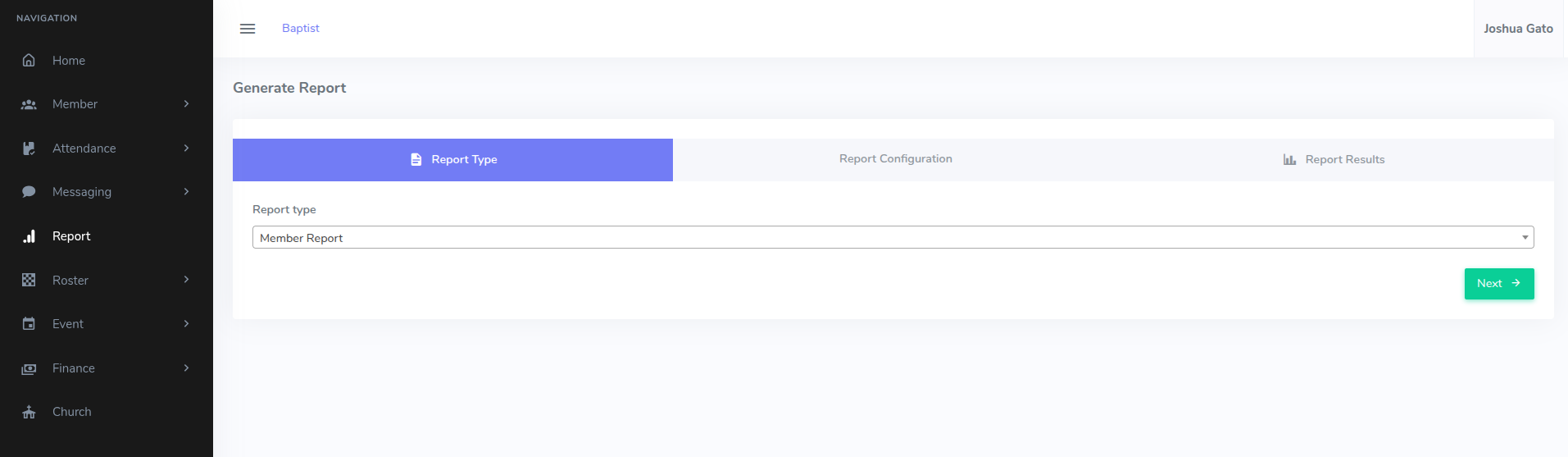
- Under the Report Type tab, select the Report Type for example Member Report, Attendance Report, etc. (And then, Click Next)
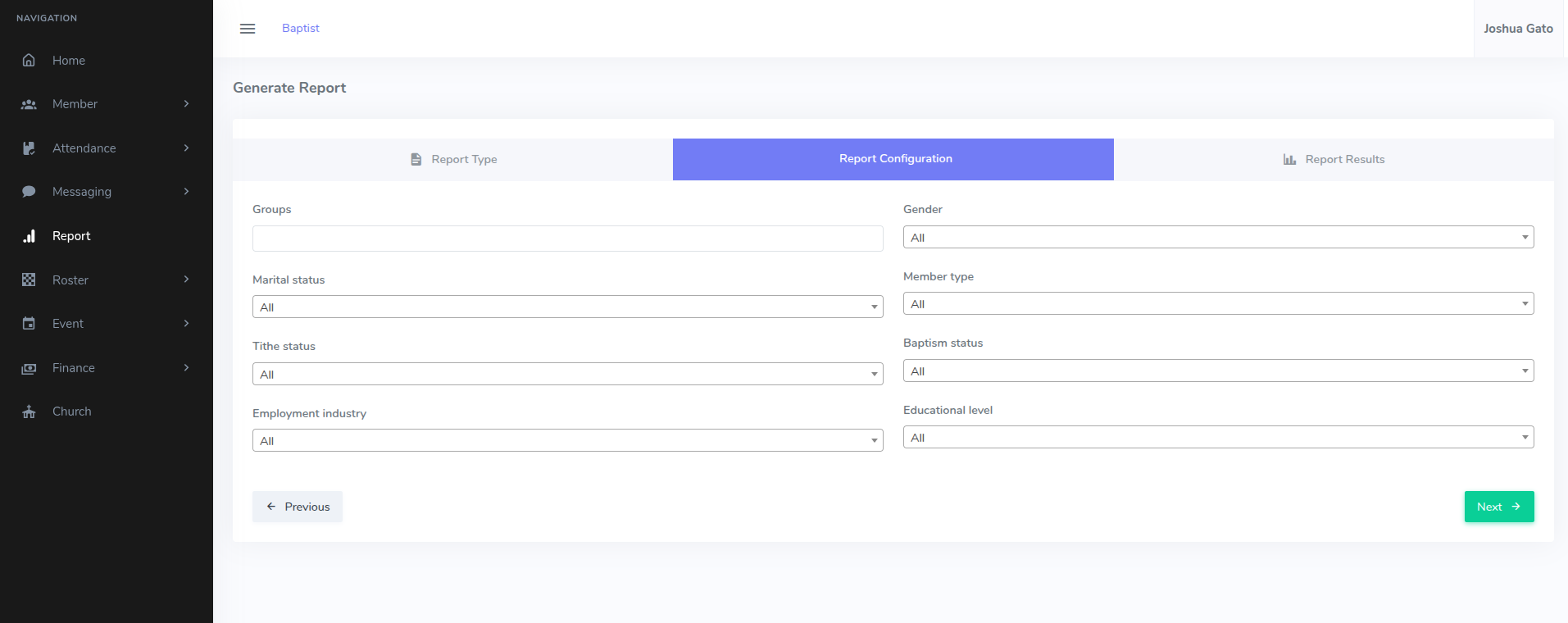
- Under the Report Configuration tab, make the necessary selections based on the specific dataset you need. (And then, Click Next)
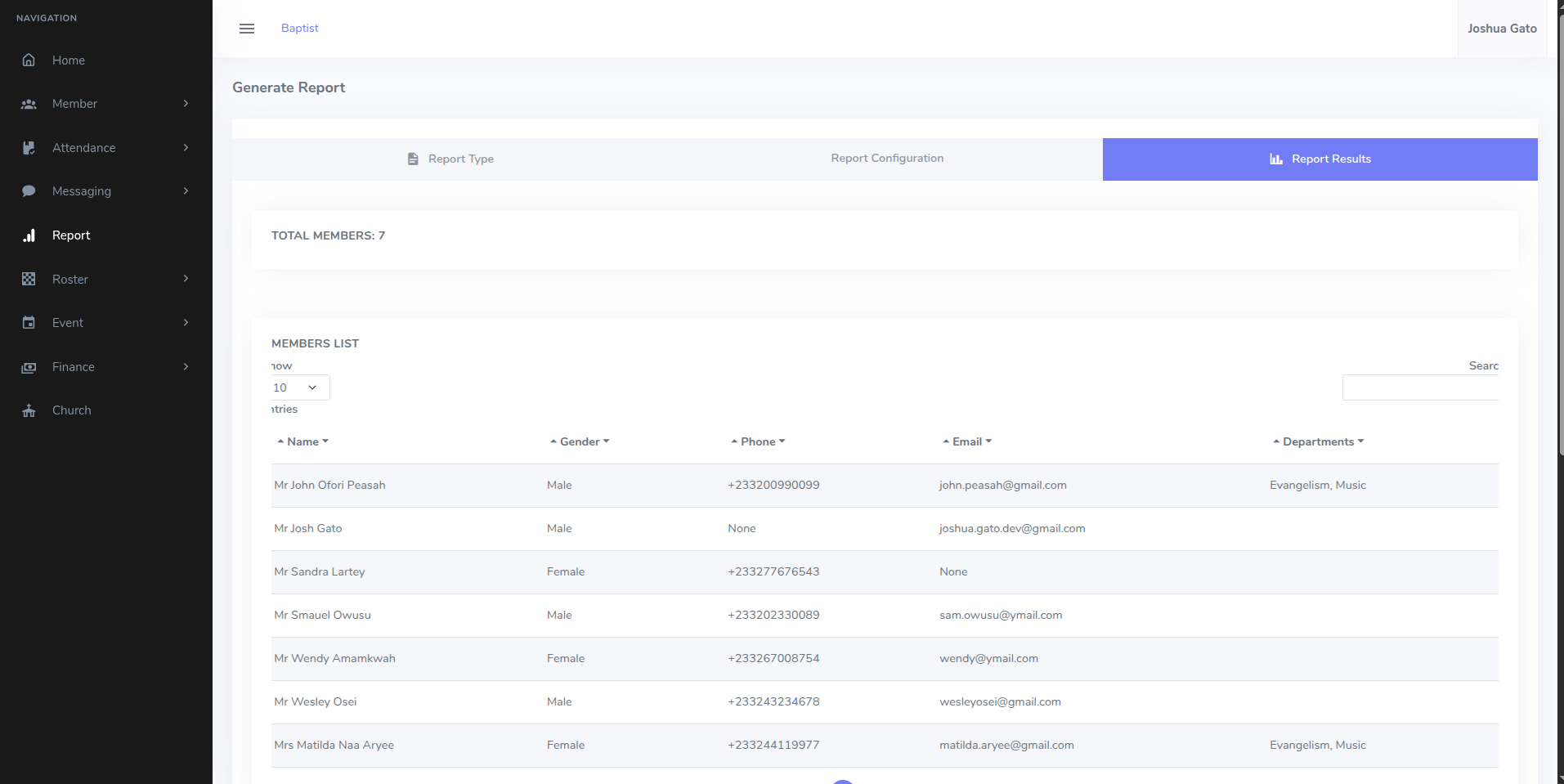
- Under the Report Results whatever you see at this point in time is the report generated.