List Finance Records
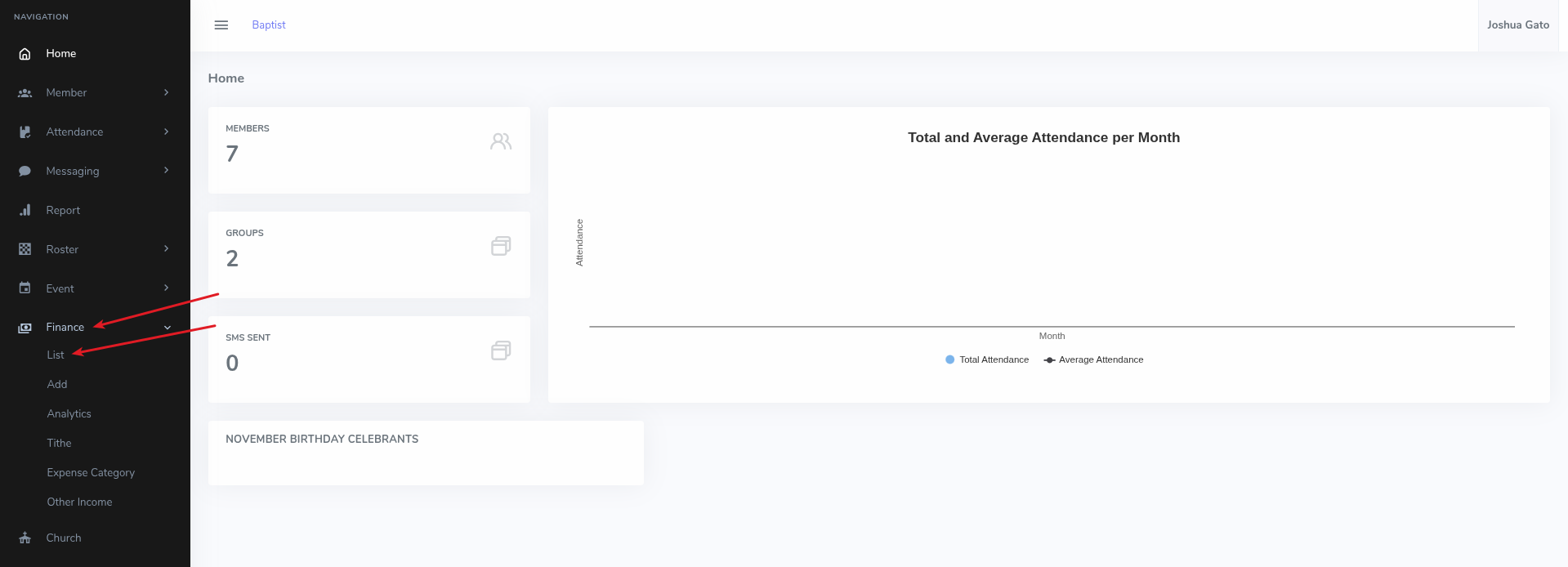
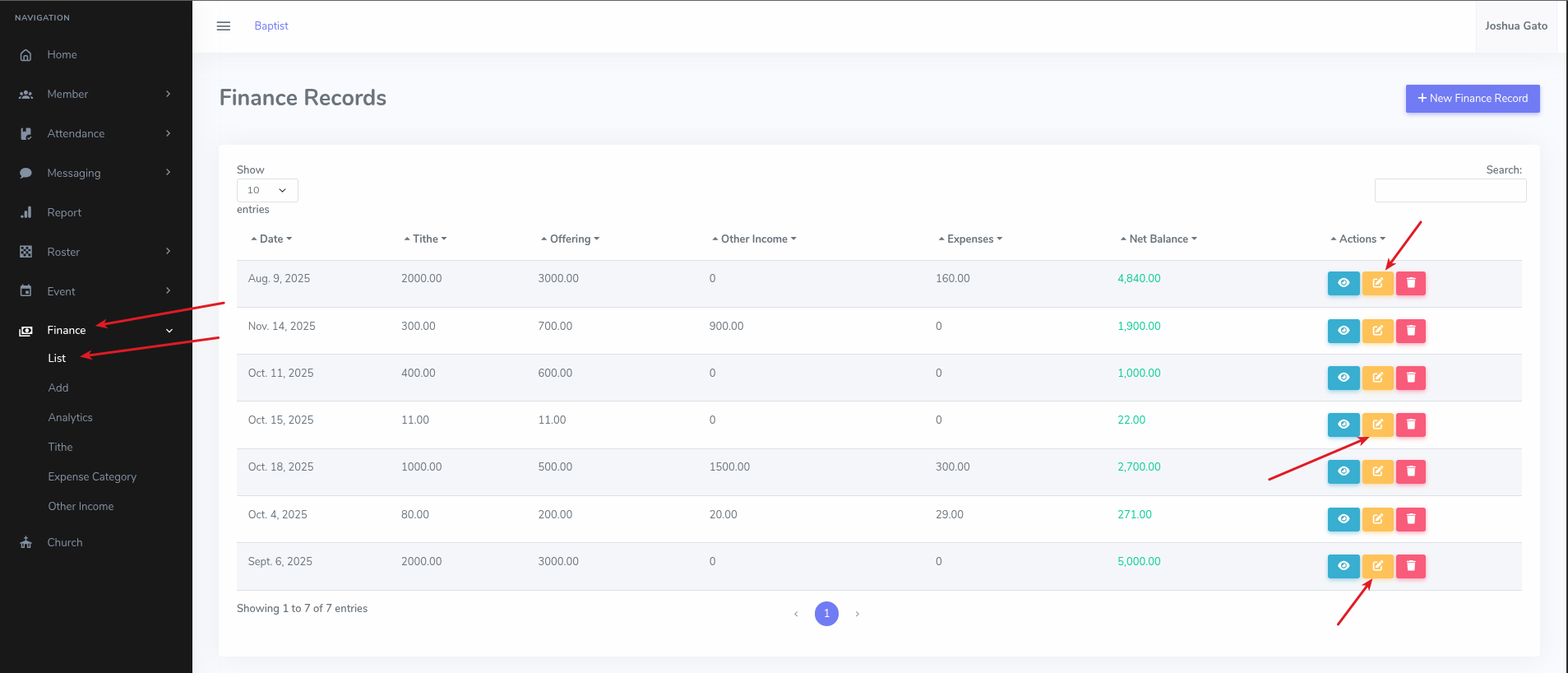
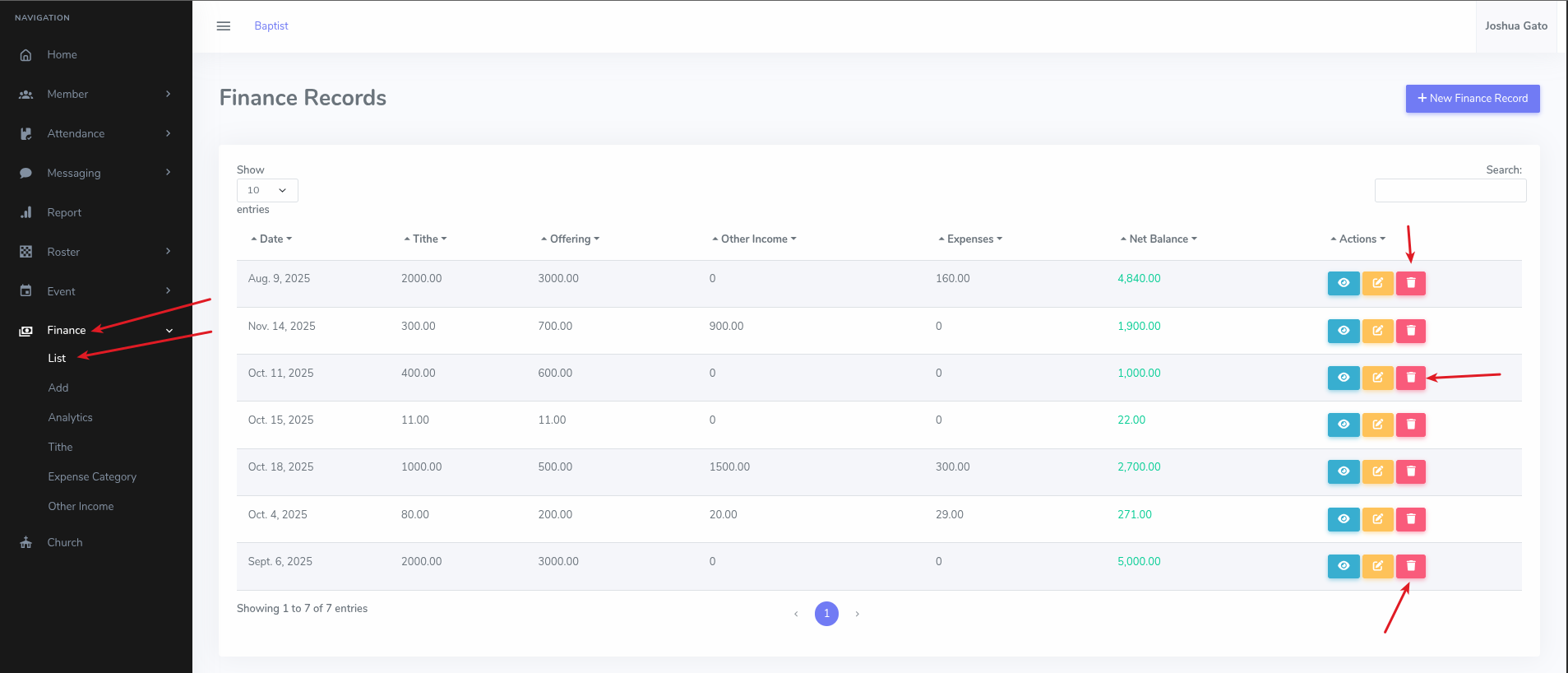
- On the dashboard Home page, click on the Finance menu option on the left sidebar
- Under the dropdown that appears, click List for the list to appear
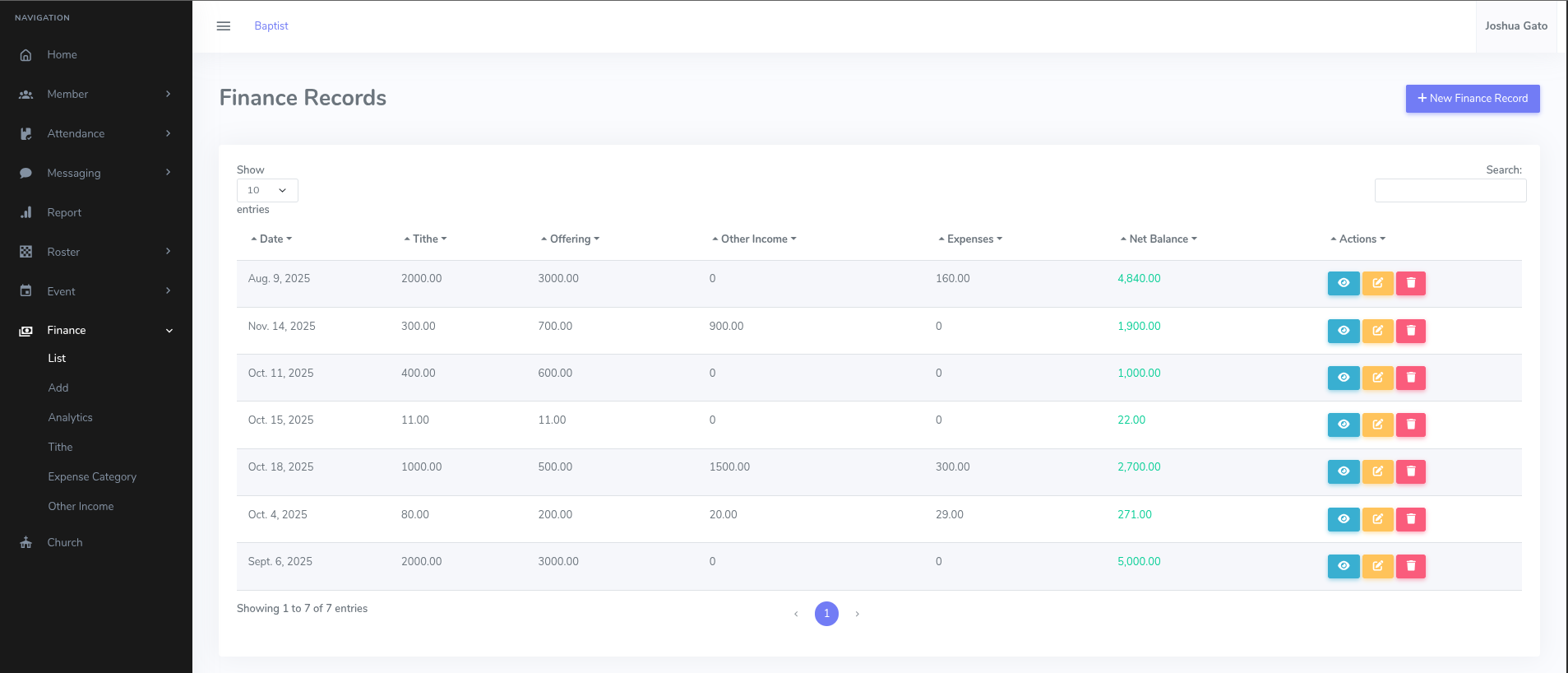
- The following are the list of finance records available
View Finance Record Details
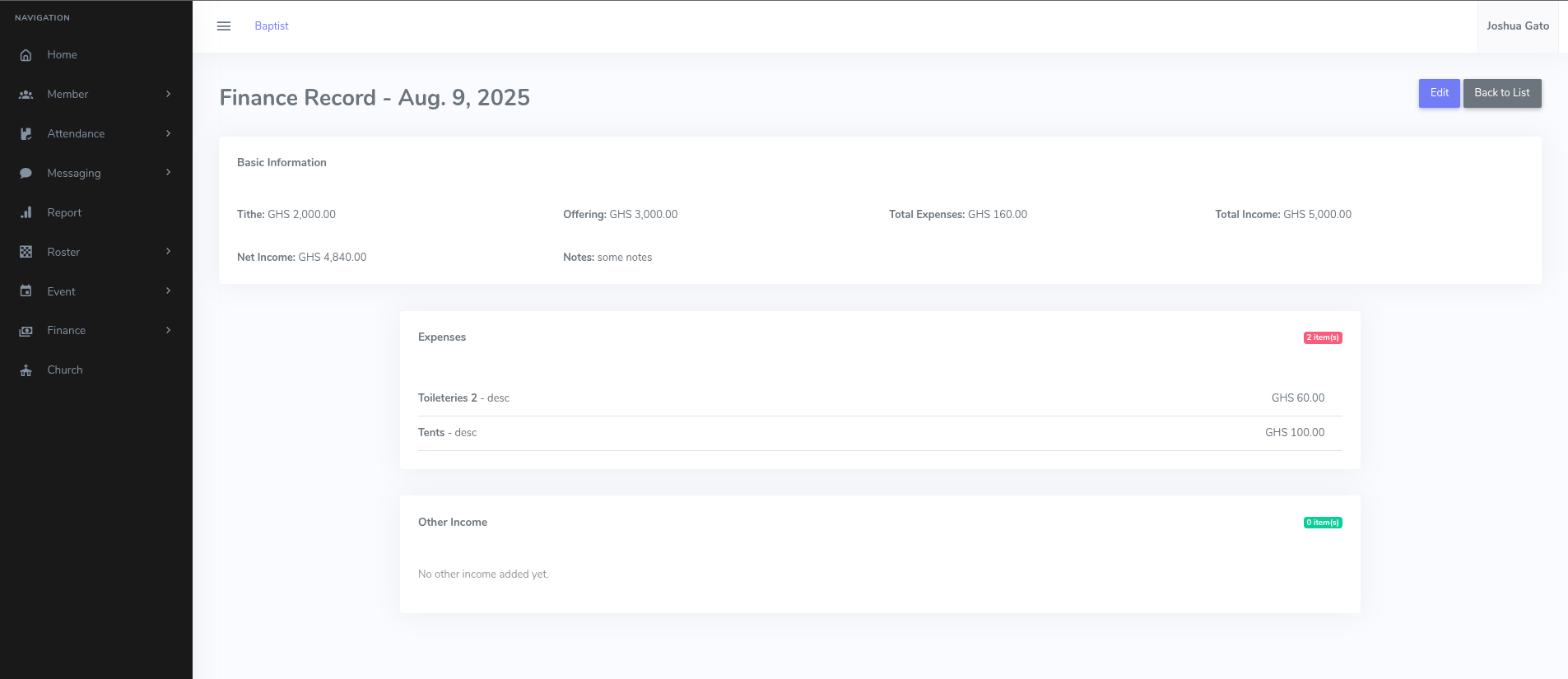
- On the list page, click the Eye Icon button for the finance record whose details you want to see
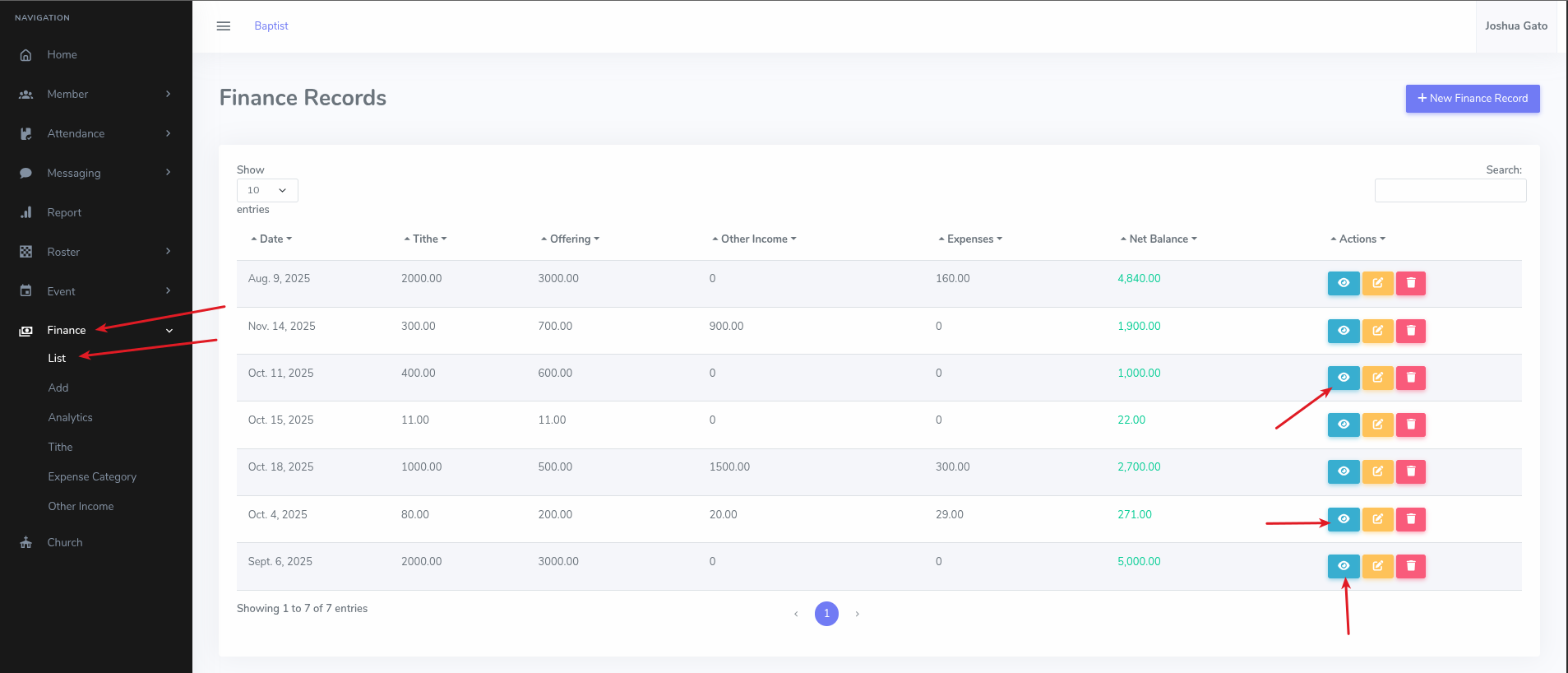
- That should open the page containing details for the finance record in question
Edit/Update Finance Record Details
- On the list page, click the Pencil on Paper Icon button for the finance record whose details you want to update
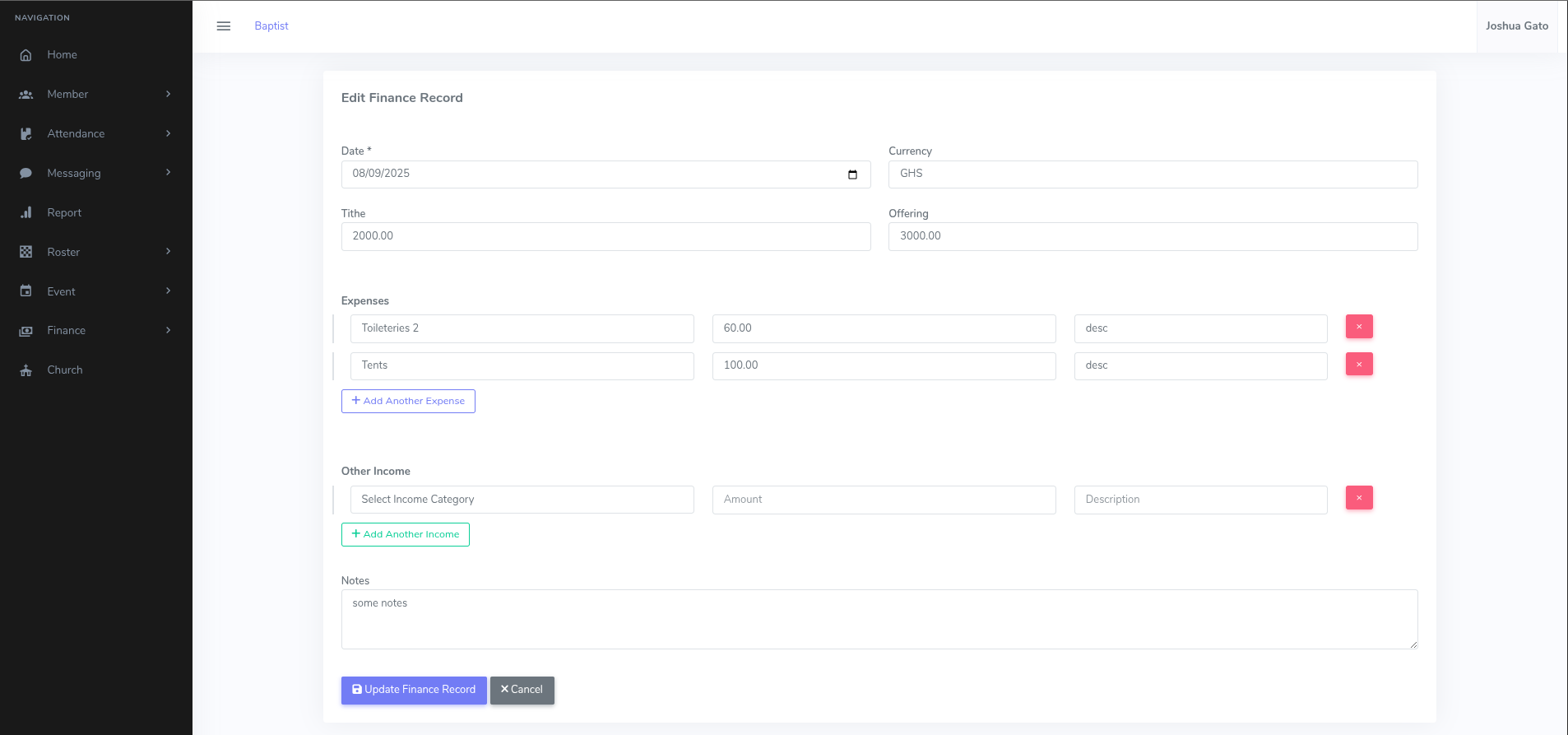
- That should open the form which you can use to update the finance record's details
- Make the necessary changes and click the blue Update Finance Record button
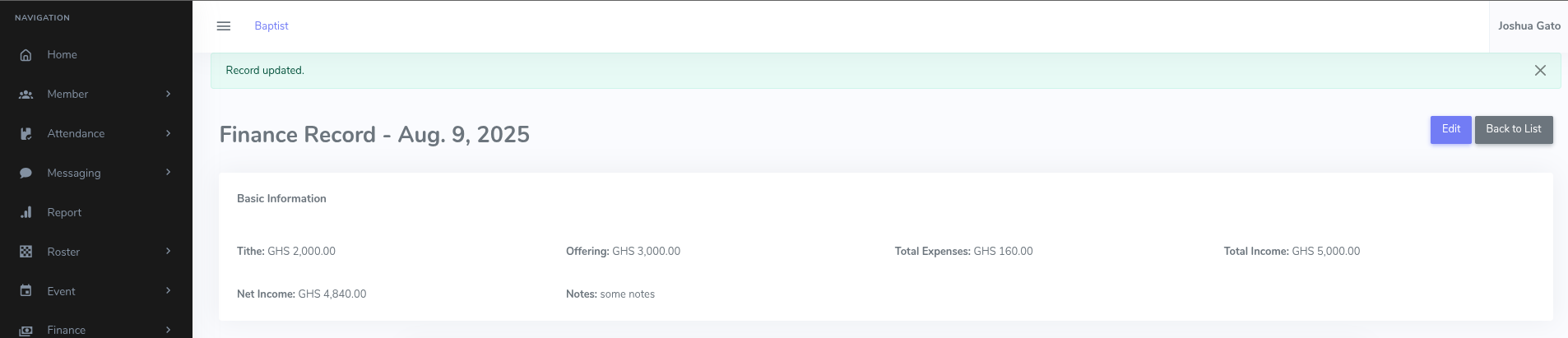
- If successful, you should see a message which reads: Record updated.
Delete Finance Record
- On the Finance Records List page, click the Trash Can Icon for the finance record you want to delete
- That should open the delete confirmation page. Click on the Yes, Delete This Record button.
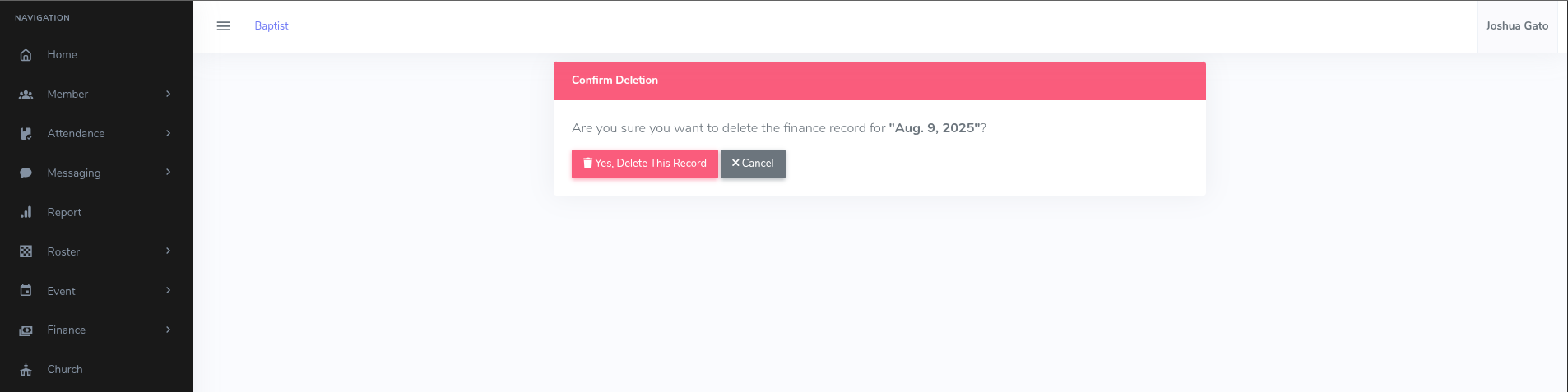
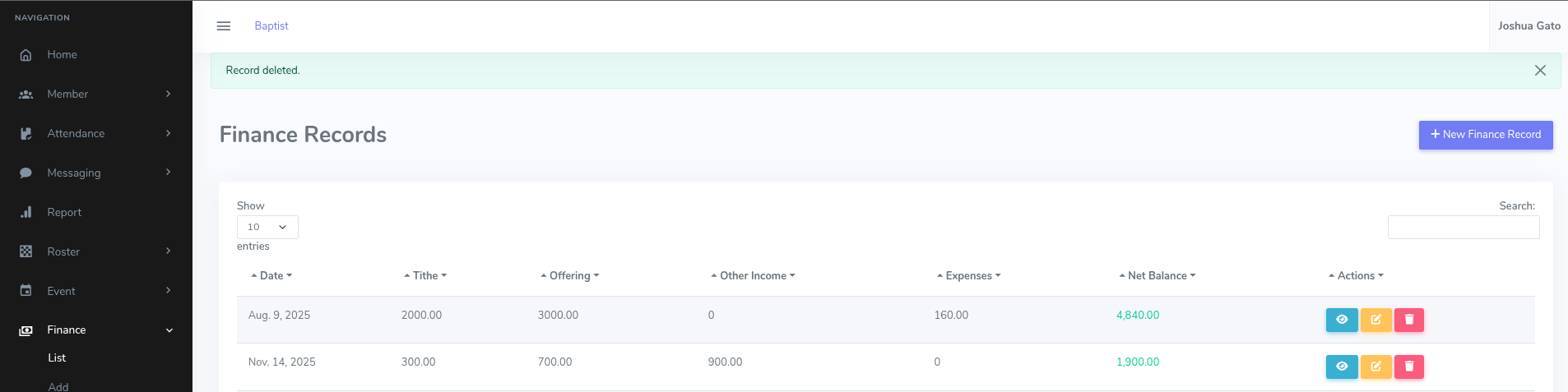
- If Successful, a success message will be displayed at the top like: Record deleted.